
There is nothing worse than a live game freezing right at the play. Buffering is the most common complaint in IPTV, and almost always the fix is one of a handful of things you control. Here are ten proven ways to stop IPTV buffering and get a smooth stream back on your screen.
Why IPTV Buffers
Buffering happens when your device can’t receive data fast enough to keep the video ahead of your eyes. The cause is usually one of three things: a slow or unstable internet connection, a congested Wi-Fi network, or a stream set to a higher quality than your connection can handle. Figure out which one, and you are most of the way to a fix.
1. Check Your Internet Speed First
Run a speed test on the same device you stream on, not on your phone on the couch. For smooth HD you want at least 15-20 Mbps; for 4K, 25-50 Mbps. If you’re far below that, your connection is the bottleneck, and no app setting will fix it.
2. Go Wired Instead of Wi-Fi
Wi-Fi is convenient, but it drops packets. A wired connection to your TV or streaming stick, or a powerline adapter, gives you a stable, low-latency feed — the single most reliable fix for bad buffering on game night.
3. Move Your Router Closer
Distance and walls weaken the signal. Move your router closer to the streaming device, or move the device router-ward. Even a few feet and one less wall often makes the difference.
4. Restart Your Router
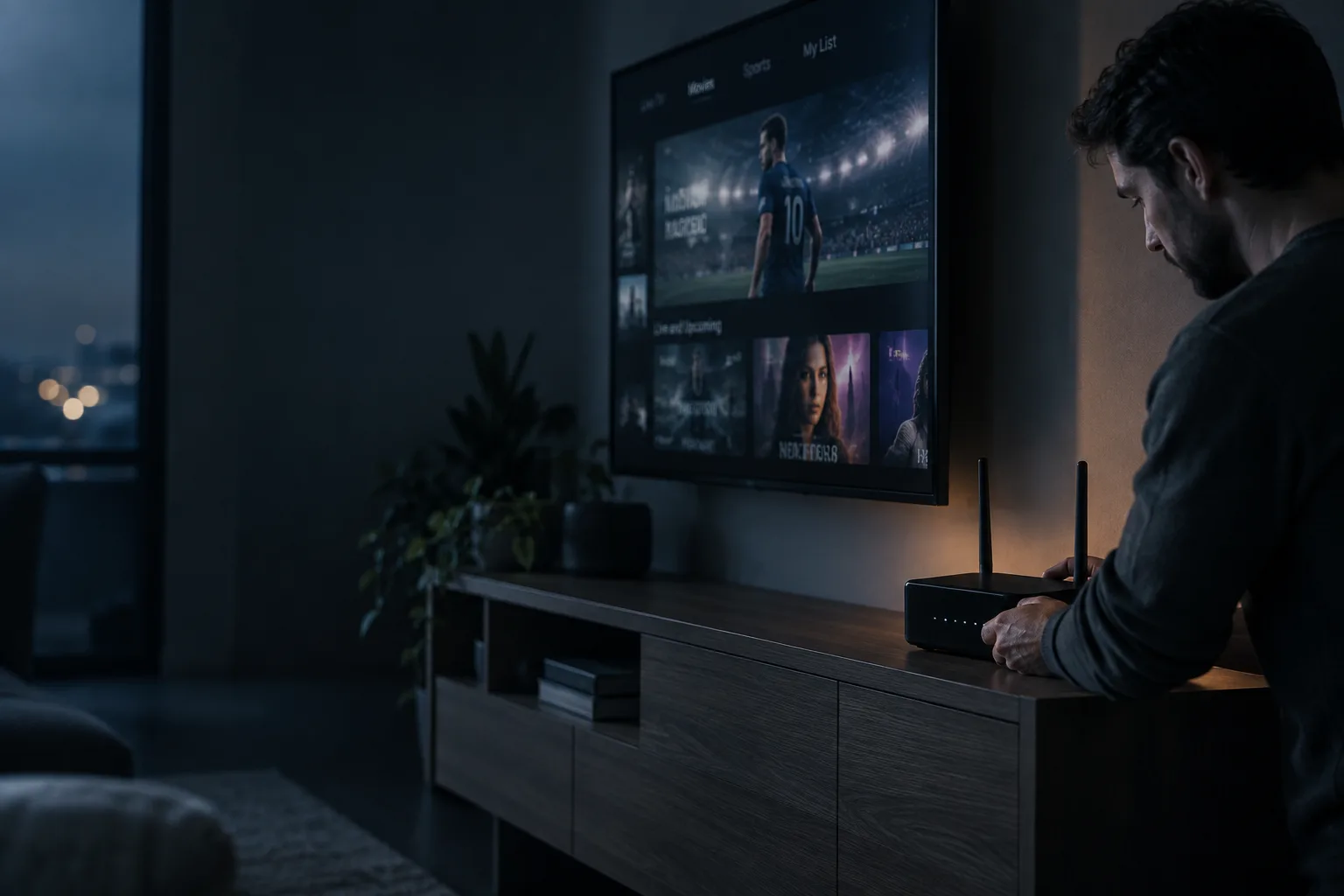
Routers slow down over days of uptime. Unplug it for thirty seconds, plug it back in, and let it reboot. This clears a surprising number of streaming problems in under a minute.
5. Lower the Stream Quality
If your connection can’t handle 4K, the app keeps trying and buffering. Drop the quality to HD or auto in the player settings. A stable 1080p stream beats a stuttering 4K one every time.
6. Close Other Apps and Devices
Background downloads, other users streaming, even a phone backing up to the cloud all eat your bandwidth. Pause them during the game and give the stream the whole pipe.
7. Update the Player App
Apps get regular fixes for buffering and playback bugs. Make sure your player on the TV, Fire Stick, or phone is on the latest version, and check for device system updates too.
8. Restart the Device
A full restart of your streaming device clears its memory and background tasks. If a stream worked earlier but buffers now, a quick restart often resets it.
9. Change DNS Servers
Your internet provider’s DNS can be slow. Switching your router or device to a fast public DNS server can speed up connection times and steady the stream.
10. Pick a Better Service
Sometimes the app is fine and your provider is the problem. A reliable service with strong servers and stable output matters more than any setting. PixelStreamHub streams full live channels and movies in 4K on stable servers, works across smart TVs, phones, and browsers, and has no contracts — so if buffering is a repeat issue on other apps, switching the source is the real fix.
Still Stuttering? Start Here
Do the fixes in order: check speed, go wired, restart the router, then lower quality. For most viewers, one of those four ends the buffering. When it is the service and not your setup, PixelStreamHub gives you a stable 4K stream with setup in minutes. Pick a 3, 6, or 12-month plan and skip the stutter for good.